The EMU Express personal account is designed for clients and partners. In it you can create orders, track shipments, print documents, calculate delivery cost and time, and view settlements with EMU Express.
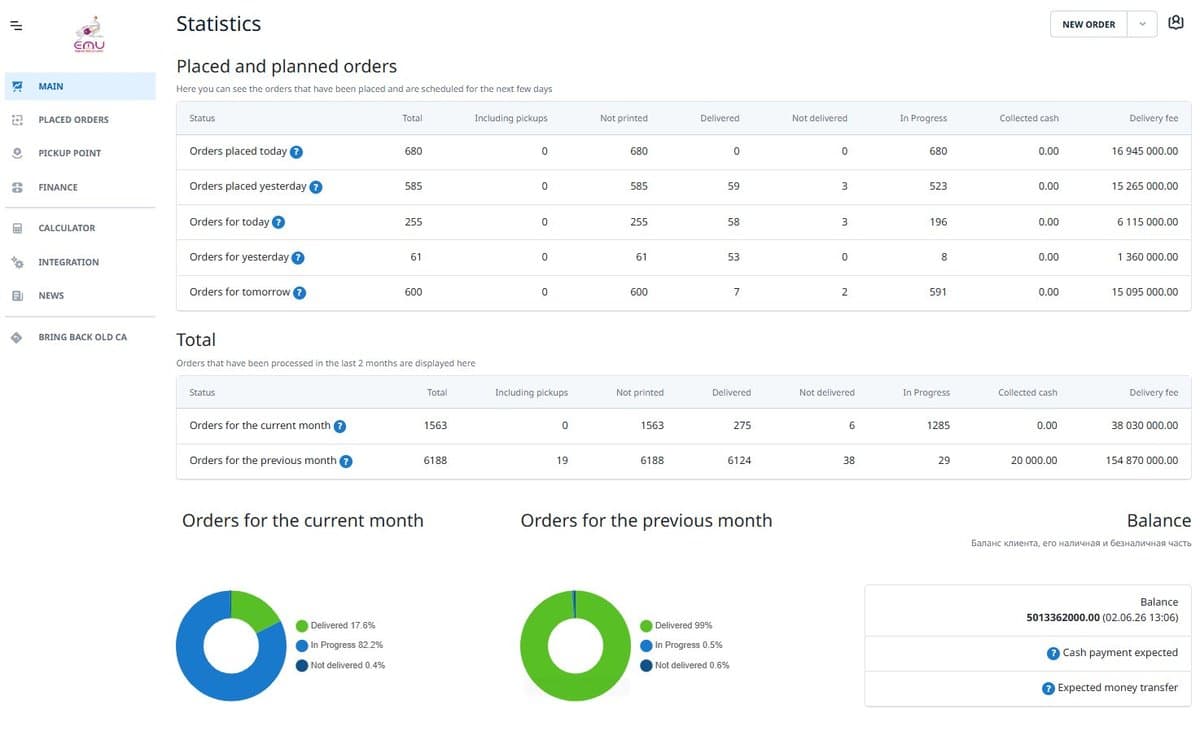
The home page of the personal account shows a statistics table for the orders you have submitted to EMU Express. To see a particular group of orders, click the relevant cell of the table — the Tracking section opens with orders matching that cell's filter.
If the selected group has no orders (the cell value is "0"), all orders in the corresponding row are shown.
The home page may display the following balances:
Balances are updated at least once a day.
In the EMU Express personal account you can create a new order in the following ways:
Creating an order by filling in the form.
A request for a courier to come and collect your shipment.
A courier collects goods from a supplier and brings them to you, or replaces an item.
Uploading several orders at once via an Excel template.
Copy an existing order, changing only the date and time.
The relevant warning is shown at the top of the account. Order numbers and barcodes must be unique within the calendar year.
Select Place an order from the main menu.
On the New order tab, fill in the required fields marked with an asterisk (*) and the others if needed.
If needed, add products, places and files.
Click the Send button.
A product can be added by article (if the order is assembled at the EMU Express warehouse) or manually. Specify the name, mass, price, barcode and dimensions.
To create several places with the same parameters, specify their number in the Quantity field.
A product can be added by article (if the order is assembled at the EMU Express warehouse) or manually. Specify the name, mass, price, barcode and dimensions.
To create several places with the same parameters, specify their number in the Quantity field.
A file can be attached to the order. The uploaded file must not exceed 1 MB.
Products, places and files can be added, edited and deleted only before clicking Send.
You can set the delivery cost depending on the final buyout amount in the order. When placing the order, in the Delivery cost setup block click Add condition, in the Buyout amount less than field specify the threshold, and in the Delivery cost field the matching cost. Set the cost for a full return in the Cost on full return field.
Open the order and click the edit button in the lower-left corner. Editing may be unavailable in the following cases:
When creating an order manually, you can see the recipient's reliability rating. It is based on the ratio of bought-out to non-bought-out orders across different courier services. The rating is shown in the Recipient phone field as a colored circle:
A cancelled order affects the negative rating more strongly than a delivered one affects the positive rating.
To track orders, select Tracking from the main menu. Set the search parameters and click Apply. A date range of up to 60 days is supported (the range is ignored when searching by number or name).
A table of orders matching the criteria opens. On this page you can:
Clicking an order row opens the Order details window. There you can subscribe to status notifications via Telegram or browser, and view and print waybills.
To print documents, check the boxes next to the orders and click the relevant button at the bottom of the page, then click Print in the preview window. If no order is selected, documents are generated for all orders in the table.
For thermal printer printing. Each label on a separate sheet. Label size 58×40 mm.
For A4 sheet printing. Labels on one or several sheets. Size 62×30 mm.
A4 printing with the position of the first label specified.
The one-time print limit is 1000 items. If you need more, print in several stages. Labels are sorted first by date, then by cipher, then by barcode. The account generates a Code128 barcode.
Tracking incoming orders is for shipments delivered to the city of an EMU Express agent (warehouse, pickup point, branch or contractor). Log in to the account as an agent, select Incoming from the menu, set the search parameters and click Show.
Clicking an order row opens Order details, where you can:
To accept orders that have arrived at the branch, in Incoming select Acceptance on the left and scan the barcodes of the incoming shipments one by one.
To view the list of pickup points, select Pickup points from the menu. At the top right you can filter points by city (the client's city by default). To see a point's location on the map, click On the map.
To select a pickup point when creating an order manually, specify the recipient's city and choose the point from the Delivery type drop-down list. It shows the points available for that city.
Using the Warehouse menu item you can:
Products are added to the warehouse after EMU Express receives them. Clicking the basket icon on the left lets you set a reorder point (Reorder point) — the row is highlighted red when the stock equals that quantity.
This section is for viewing money-transfer acts to clients. To view the data, specify the date period and click Show — the acts table appears. To see the list of orders in an act, click the act row. The table can be exported to Excel.
The calculator is for estimating delivery cost and time. In the Calculator menu item, fill in the form and click Calculate.
To show the calculation for your company, tick Apply price for the client. To calculate the price for the end recipient, clear the checkbox.
The tickets section is for contacting EMU Express technical support. By default the Reply received tab opens with tickets that have new messages. On the left there are two more tabs: In progress and Closed.
Setting cost and time based on delivery conditions and buyout amount. A markup or discount is added to a matching order. Rounding (up, down or mathematical) can be configured.
Managing the API connection. The section has tabs: List of integrations, Integration settings and Debugging.
Changing the password used to log in to the account.
Configuring the general appearance and working parameters of the account.
If you need help with the personal account, contact EMU Express support.
Send the information from this page to your friends and colleagues.